---
updatedAt: 2026-04-14T18:10:58.000Z
agentTools:
projectIndex: https://snipe-it.readme.io/llms.txt
---
# Webhook Integration
Snipe-IT allows integration with Slack, Google Workspaces, Microsoft Teams, or other arbitrary compatible webhooks, which will allow you to get notifications to a specified channel when someone checks an asset, license, component or consumable in or out.
# Creating an Incoming Workflow in Slack
To configure your Snipe-IT installation with Slack integration, go to `Admin > Settings`, and click on the `Integrations` section.
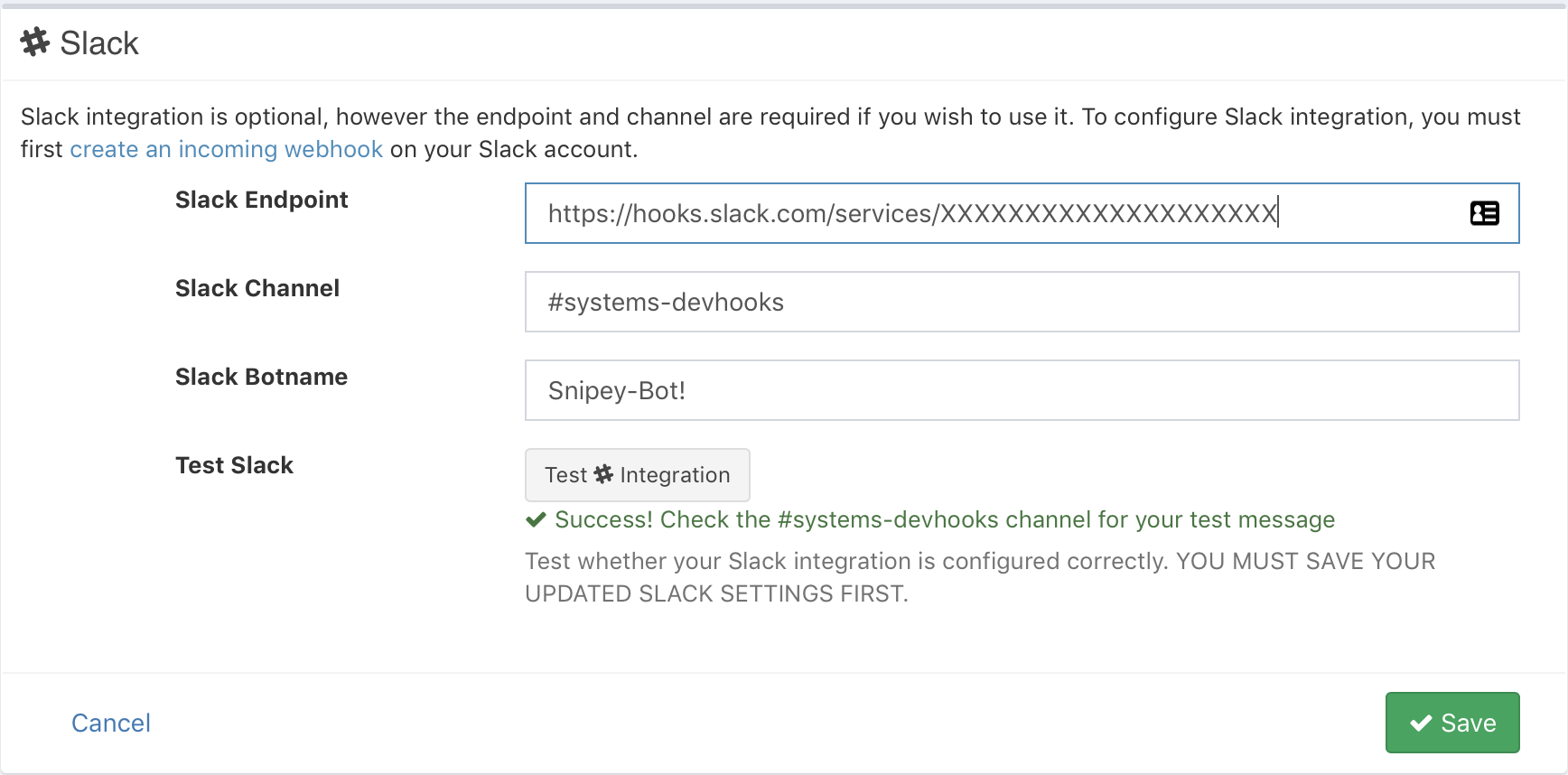
If you're using Slack, you'll need to [create an incoming Slack webhook integration](https://my.slack.com/services/new/incoming-webhook) in your Integrations page on the Slack website, and then grab the endpoint that Slack provides you. Paste that URL into the Slack Endpoint field, and then select a valid Slack channel (this should start with `#`, like `#IT-ops`).
You can use the "Test Integration" button ONLY after you've saved your initial Slack settings.
# Creating an Incoming Workflow in Microsoft Teams
* Select the channel in Microsoft teams where you want the notifications to be posted.
Click on the More Options (**...**) and select Workflows.
* Choose **Post to a channel when a webhook request is received** then name your workflow or leave it as is and press next.
* Select the Team and the Channel that you want this workflow to be associated with.
* Copy the workflow URL provided into the **Microsoft Teams Endpoint** in Snipe-IT.
* Get a successful response from clicking the **Test Microsoft integration** and you will be able to save your webhook and begin receiving notifications.
# Creating a Google Workspaces Webhook
* Select a **Space** or create a Space that you would like to receive the notifications. For this example, I’m selecting **Webhooks**.
* Open the dropdown menu next to the Space name and select **Apps & Integrations**.
* Click on **+Add webhook**, name your webhook and optionally apply an avatar.
* Copy the workflow URL provided into the **Google Workspaces Endpoint** in Snipe-IT.
* Get a successful response from clicking the **Test Google integration** and you will be able to save your webhook and begin receiving notifications.