The Snipe-IT JSON REST API allows you to perform most of the same actions through your own tools as you can through the web interface.
If you need the Swagger/OpenAPI Specification, you can find it here.
Try the API ExplorerIn this documentation, whenever you see the API explorer with a button say thats "Try It", go ahead and try it! The API explorer live-queries a demo database attached to the development demo. You'll be able to add, edit, update and delete right from the API explorer.

Since the API Explorer talks to the live development database - and resets periodically - you CAN (and probably) will occasionally break some stuff as you're playing around.
If you'd like to be logged into the development demo at the same time as you play with the API Explorer to see your changes reflect through the Web UI, use the username admin and the password password.
This documentation (and the API itself) is still under development, so some things may not work exactly as expected, or we may not have code examples and sample responses for everything just yet. Please be patient. As we continue to develop the API, we are updating the documentation.
Philosophy
Our philosophy on HTTP status codes is that as long as the pipe (the http request itself) is sound, the API should return a 200 OK status code. We realize that some very smart people have a very different philosophy, but in general we want the HTTP status code to describe the state of the resource endpoint, with the actual status of the transaction returned in the JSON payload.
For example, if you made a valid HTTP request to retrieve an asset that doesn't exist, we'll return a 200 OK, with the following payload:
{
  "status": "error",
  "messages": "Asset does not exist."
}
Likewise, if you try to update a resource, but you don't provide all of the required information, we'll respond with validation errors in the messages section of the response:
{
  "status": "error",
  "messages": {
    "model_id": [
      "The selected model id is invalid."
    ],
    "status_id": [
      "The selected status id is invalid."
    ]
  }
}
Escaping
The results of the API will automatically be escaped to prevent XSS attacks. If you're consuming the API output, you'll want to unescape the results.
Case Sensitivity
As MySQL and many other database engines perform case-insensitive searches, searching against names, model numbers, or other fields will return matches regardless of case.
Three ways to search the Snipe-IT API
The Snipe-IT REST API exposes three query patterns for finding records. Each behaves differently and is appropriate for different callers.
1. Global text search: search=
search=Broad substring search across every field the model has marked searchable, including its related relations and custom fields.
Example
GET /api/v1/hardware?search=laptopMatches any asset whose asset_tag, serial, name, notes, model name, category name, manufacturer name, etc - or any custom-field value contains laptop. Case-insensitive on the default MySQL collation.
Custom fields are searched by value. You cannot restrict the search to one specific field with this parameter.
Benefits
- Zero-friction. You give it a string and it looks everywhere.
- Mirrors the top-right search box in the GUI. If a value shows up when a user types it into that box, the same query works via the API.
- Handles multi-word input with
ANDsemantics between whitespace-separated tokens (via the sameSearchable::scopeTextSearchcode path the GUI uses).
Drawbacks
- No way to say "only match this field." A search for
adminwill pull rows where the string appears inasset_tag,notes, related user names, related manufacturer names, and so on. - No support for negation, exact match, or IS NULL checks.
- Because it scans many columns and JOINs several relations, it is the slowest of the three on large tables.
- Not composable. You cannot combine two
search=params.
2. Per-field query parameters: field=value&other=value
field=value&other=valuePasses each field as its own top-level query string parameter. The API's controller inspects specific known field names (status_id, category_id, assigned_to, _snipeit_*, etc.) and adds a WHERE clause per param.
Example
GET /api/v1/hardware?status_id=2&category_id=24&assigned_to=1088&assigned_type=App\Models\User&_snipeit_cpu_4=rtyertyetyeyBenefits
- Fast. Each param becomes a direct WHERE on an indexed column, no JOINs beyond the ones the endpoint already performs.
- Explicit. You know exactly which column each value hits, no cross-column surprises.
- Composable. Add or remove params without restructuring the URL.
- Well-supported by simple HTTP clients (curl, Postman, custom scripts). No JSON encoding required.
Drawbacks
- Exact match only, including for custom fields. If your
CPUcustom field storesIntel Core i7-1185G7 @ 3.00GHz,?_snipeit_cpu_4=Intel Core i7returns zero rows because it doesn't equal the whole stored value. Use pattern (3) for substring matching on custom fields. - Limited to the fields the endpoint explicitly recognizes. Unknown params are silently ignored.
- No operator syntax. You cannot express "NOT this", "IS NULL", or "starts with".
3. Structured advanced filter: filter=<json>
filter=<json>A JSON blob of field/value pairs passed as the filter param. This is what the GUI's "Advanced Search" panel emits and it goes through the same Searchable machinery, so behavior matches the GUI exactly.
Example
Basic substring match on one custom field (find every asset whose CPU custom field contains "i7"):
GET /api/v1/hardware?filter={"_snipeit_cpu_4":"i7"}URL-encoded (what an HTTP client will actually send):
GET /api/v1/hardware?filter=%7B%22_snipeit_cpu_4%22%3A%22i7%22%7DMultiple keys (default AND semantics) — assets with HQ- in the tag, an IMEI starting with 358, and a specific location:
GET /api/v1/hardware?filter={"asset_tag":"HQ-","_snipeit_imei_1":"358","location":"Building A"}OR semantics across keys — assets whose asset_tag OR notes contain spare:
GET /api/v1/hardware?filter={"asset_tag":"spare","notes":"spare"}&filter_operator=orPer-value operator prefixes — exact match on _snipeit_mac_address_5, substring on asset_tag, unassigned only, and no Broken note:
GET /api/v1/hardware?filter={"asset_tag":"HQ-","_snipeit_mac_address_5":"is:00:1B:44:11:3A:B7","assigned_to":"is:null","notes":"!Broken"}The supported prefixes on individual values are:
| Prefix | Meaning | Example value | SQL |
|---|---|---|---|
| (none) | Substring match | "HQ-" | LIKE '%HQ-%' |
is: | Exact equality | "is:HQ-01" | = 'HQ-01' |
is_not: | Exact inequality | "is_not:HQ-01" | <> 'HQ-01' |
! or not: | Substring negation | "!scratched" | NOT LIKE '%scratched%' |
is:null | Null check | "is:null" | IS NULL |
is:not_null | Not-null check | "is:not_null" | IS NOT NULL |
Both ?filter={...} and ?filter=filter:{...} are accepted; the leading filter: sentinel is a legacy prefix some clients emit.
Benefits
- Same behavior as the GUI's Advanced Search. If the GUI shows a result, this URL will too.
- Substring match by default (matches user intuition for text fields).
- Rich operator vocabulary (negation, exact, null checks) that neither of the other patterns supports.
- One param carries all the criteria, so complex queries are still a single URL.
- Supports both AND and OR combination.
Drawbacks
- URL is uglier and needs URL-encoding for anything beyond the smallest payload.
- JSON parsing means malformed payloads are silently ignored rather than raising an obvious error.
- Custom-field keys must be the exact
db_column(e.g._snipeit_cpu_4), not the human-readable name (CPU). Callers usually need a lookup step to discover those column names - the/api/v1/fieldsendpoint returns each field'sdb_column. - Slower than pattern (2) for simple queries because every value defaults to LIKE with leading and trailing wildcards.
Quick decision guide
| Situation | Use |
|---|---|
| Just typed a string in a search box, wants best-effort match | search= |
| Building URLs from known IDs and want an exact match | field=value |
| Substring search on a custom field, negation, null checks, or matching GUI advanced-search behavior | filter={...} |
Combining patterns 2 and 3 on the same request works — per-field params add their own AND clauses on top of whatever the JSON filter narrows to. Pattern 1 (
search=) does not combine with the others. It takes precedence when present.
Routes
If you're ever unsure of a route's name (and for some reason it's wrong in the docs) you can check on your local install by running:
# Get the full list of routes
$ php artisan route:list
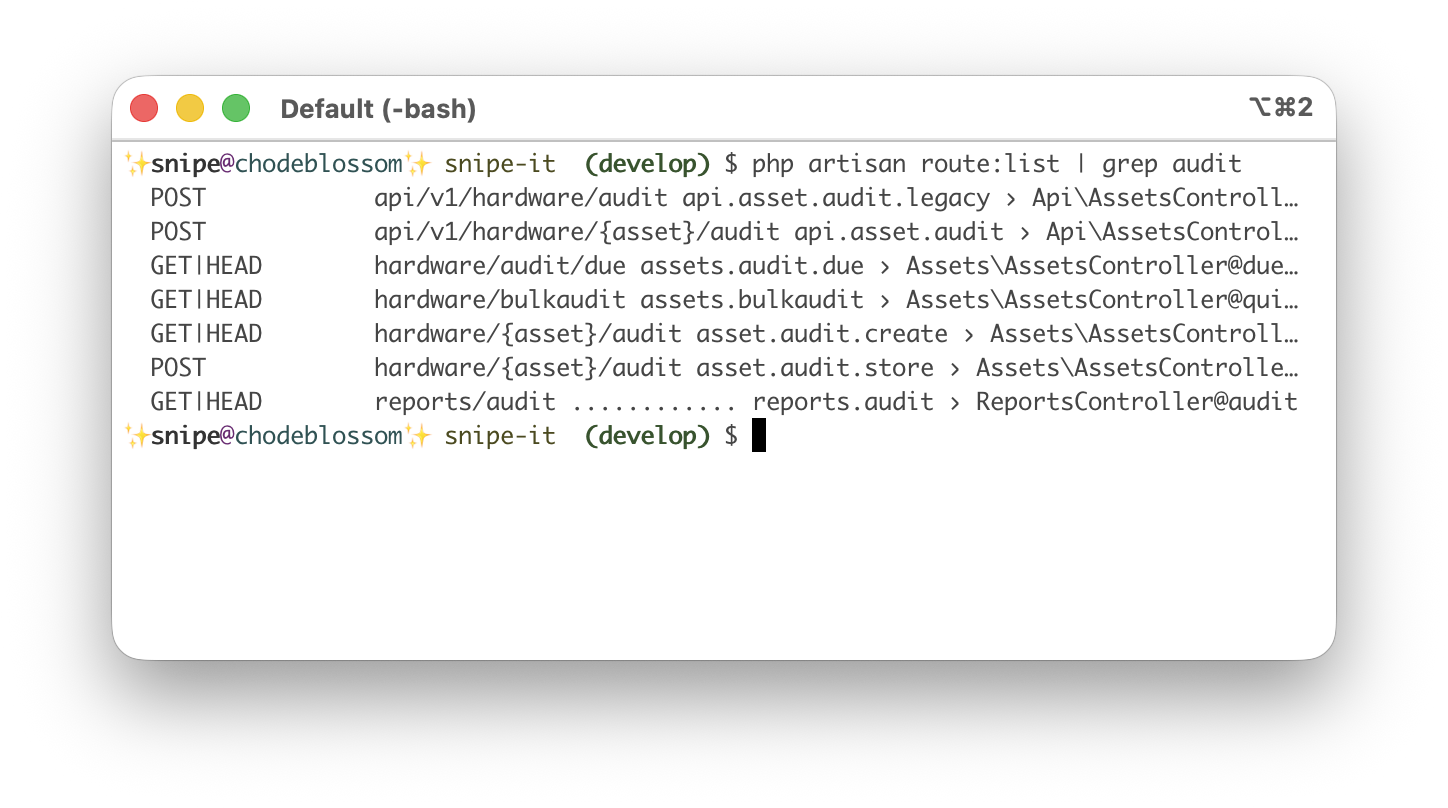
That will undoubtedly return a huge number of routes, most of which you probably don't care about, so you can filter those results using something like grep:
# Pipe the route result through grep to return a smaller number of results
$ php artisan route:list | grep audit
which would return something like this: