
Sync Adapters
Sync your Snipe-IT with Fleet, Jamf, InTune, Iru, JumpCloud and more, right from within Snipe-IT!
As of Snipe-IT v8.8.0, we now ship with common sync adapters to allow you to easily pull (and sometimes push) from MDMs, RMMs, and other systems you already use.
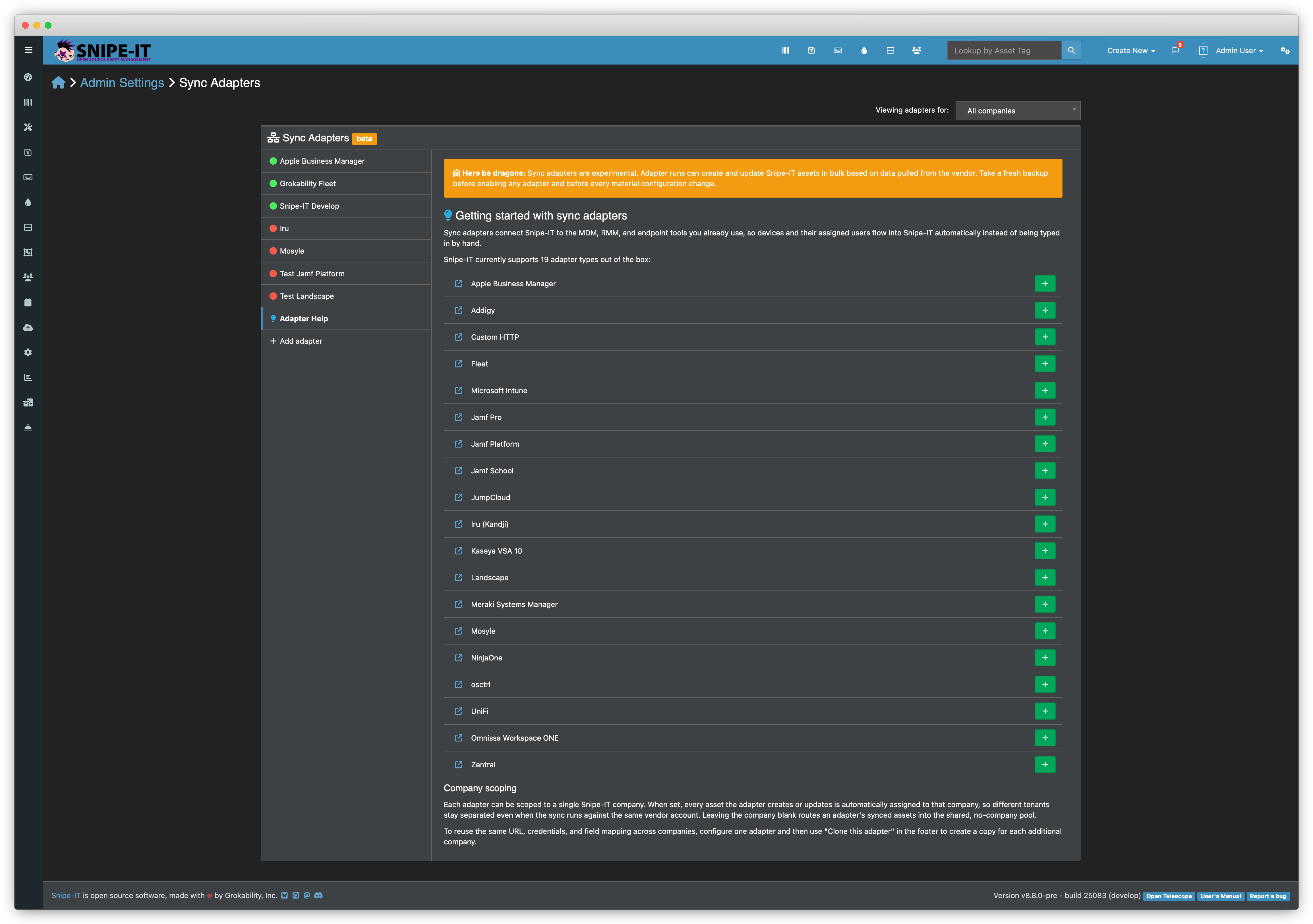
What a sync adapter does
A sync adapter connects Snipe-IT to a third-party device inventory source (an MDM, RMM, unified endpoint manager, or fleet tool) and periodically imports the devices it sees into Snipe-IT as assets. Some adapters also push a small set of Snipe-IT-owned fields back to the vendor (e.g. asset tag, notes) so both systems stay aligned.
Every adapter:
- Pulls device records on a daily schedule, normalizes them into a standard shape, and creates or updates matching Snipe-IT assets.
- Tracks each synced asset by a stable pair of
(source, external_id)values stored inasset_external_sources, so it can find and update the correct Snipe-IT asset even if you rename it locally. - Writes vendor-specific telemetry (last-seen timestamp, OS version, MAC, IP, etc.) to a dedicated telemetry table without polluting the main asset audit log on every heartbeat.
| Indicator | Meaning |
|---|---|
| Active | URL + all required credentials present, toggle on |
| Partial | Instance exists but is missing required config to run |
| Inactive | Toggle is off, instance will be skipped on scheduled runs |
Important!When syncing to a Snipe-IT instance with existing assets, make sure you check the "Adopt by serial number" to avoid duplicates being created. They would be duplicates since the external sync ID from your RMM/MDM won't yet be in your Snipe-IT system.
Adding a sync adapter instance
Snipe-IT ships a fixed catalog of adapter types (Jamf, Kandji, Fleet, and so on). You add instances of those types. Two Fleet instances pointing at two different Fleet servers is a normal shape.
- Go to Admin > Sync Adapters > Add.
- Pick the adapter type from the dropdown.
- Enter a label. The label is what shows up in the admin list and in asset detail pages under the "External Sources" panel. Pick something you will recognize: "Fleet prod", "Jamf Finance MDM", etc.
- Optionally set a default company for this instance. Assets created by this adapter will land in that company unless a per-group mapping overrides it (see "Group scoping" below).
- Save. You will be redirected to the instance edit page to fill in the URL, credentials, and field mappings.
The label is used to generate the instance's slug on create. The slug never changes after that, because asset_external_sources.source references it. Renaming the label is safe. Deleting and recreating an instance with the same label will not reunite it with its old assets.
Instance settings tabs
Every adapter's edit page uses the same tab layout:
- General. Label, active toggle, default company, default status label for auto-created assets, default category, asset-tag pattern, user-assignment strategy, notification suppression toggle, adopt-by-serial toggle.
- Connection. Base URL (when configurable) plus the credentials the adapter declares.
- Field Mapping. One row per normalized field (hostname, serial, model, MAC, IP, OS, OS version, last seen) plus one row per vendor-specific extra field the adapter surfaces. Each row picks a target (see below) and a direction (pull, push, both, skip).
- Groups. When the adapter supports group scoping, a table showing every remote group and letting you map it to a Snipe-IT company.
- Composed Notes (push-capable adapters only). A template that produces the notes value pushed to the vendor. Supports
{asset_tag},{name},{custom.Field Name}and similar placeholders.
Field mapping model
Each mappable field can route to one of four target types:
| Target | Encoding | Result |
|---|---|---|
| Skip | skip | Value is ignored on pull, not sent on push |
| Native column | native:{column} | Written to a column on the assets table |
| External | external:{column} | Written to asset_external_sources telemetry columns (does not fire audit log entries) |
| Custom field | custom:{id} | Written to a Snipe-IT custom field on the asset |
The direction column on each field controls whether the field flows in from the vendor (pull), out to the vendor (push), both, or neither (skip).
Push direction is only meaningful for adapters that implement the push contract (meaning they have an endpoint and writable fields that make sense). On pull-only adapters, the direction column hides the push and both options.
Groups and multi-tenant routing
Some vendors organize devices into groups (Jamf Sites, Kandji Blueprints, Fleet Teams, NinjaOne Organizations, Mosyle Locations, Meraki Orgs, Addigy Policies, etc.). When the adapter supports it, you can map each remote group to a Snipe-IT company, so devices land in the right company without an admin re-tagging them by hand.
Two ways to populate the list:
- Refresh from vendor. The settings page has a "Refresh groups" button that calls the vendor API and caches the current groups. Use it after you add a new site, team, or blueprint on the vendor side.
- Manual. For adapters that do not expose groups via API, you can add a row directly.
An unmapped group falls back to the instance's default company. If that is also blank, the sync log warns and skips the record.
Push (write-back to the vendor)
Snipe-IT can push a small subset of fields to the vendor when the adapter supports it. Today the push-capable adapters are:
- Jamf Pro (asset tag, composed notes)
- Kandji (asset tag, composed notes)
- Intune (composed notes)
- NinjaOne (composed notes, custom-field targets)
- Mosyle (asset tag, composed notes)
- Omnissa Workspace ONE (composed notes)
- Custom HTTP (fully configurable)
Push runs on its own daily schedule at 03:00 (offset from the pull so they do not stack on a slow scheduler tick), and can be triggered by hand from the instance edit page via the Push Now button.
Dry run mode: the instance settings include a push dry-run toggle. When enabled, the adapter logs the exact payload it would send to storage/logs/sync-adapters.log and skips the HTTP call. Turn this on before your first live push to verify your mappings.
Scheduling
Two scheduled commands run these adapters:
| Command | Schedule | What it does |
|---|---|---|
snipeit:pull-inventory | daily | Pulls devices from every active instance |
snipeit:push-inventory | daily 03:00 | Pushes to every push-capable active instance |
Both use withoutOverlapping() so a long-running sync will not cause a second copy to start before the first one finishes.
The scheduler requires Laravel's own scheduled task runner to be active. On self-hosted installs that means adding this cron entry:
* * * * * cd /path/to/snipe-it && php artisan schedule:run >> /dev/null 2>&1Hosted Snipe-IT: the multi-tenant hosted platform does not run the per-tenant scheduler. Sync adapters on hosted installs are triggered by a different mechanism outside of schedule. Just send us a ticket at [email protected] and we'll get a daily task configured for you.
Running a sync by hand
Every instance's edit page has a Sync Now button. Clicking it runs the same pull path as the scheduled command against just that one instance, and streams the results into the flash message on the next page load. This may time out on larger fleets, so you should be prepared to run it via CLI if that happens.
From the command line:
php artisan snipeit:pull-inventory              # all active instances
php artisan snipeit:pull-inventory --slug=fleet-prod   # one instance by slug
php artisan snipeit:push-inventory              # all push-capable instances
php artisan snipeit:push-inventory --slug=jamf-finance
What gets logged
storage/logs/sync-adapters.log. The dedicated log channel. Every sync run writes its start, per-record decisions (created, updated, adopted, heartbeat, skipped), and end summary here.action_logstable. Asset-level changes (created, updated with field-level diff, checked out, etc.) that fire when the sync is not a heartbeat-only touch. This is the same audit log the rest of the app uses.- Instance metadata.
sync_adapter_instances.last_synced_atandlast_sync_resultare updated after every run so the admin index page shows recent activity at a glance.
Heartbeat-only syncs (only last_seen changed) intentionally do NOT write to action_logs, because that would generate one "updated" entry per asset per day per adapter and drown the real audit trail. Look at sync-adapters.log if you want to confirm a heartbeat ran.
Adopting existing assets by serial
When you first turn on a new adapter for an inventory you already manage in Snipe-IT, you probably want the sync to update existing assets rather than create duplicates. The Adopt by serial toggle in the instance's General section controls this:
- On (default for first-run): if a vendor record's serial matches an existing Snipe-IT asset without an external-source row for this instance, the sync claims that existing asset (writes a new
asset_external_sourcesrow pointing at it) instead of creating a new asset. - Off: the sync always creates a new asset when it sees an external_id it has not seen before.
Leave it on for the first full pull, verify the results, and only turn it off if you deliberately want the two systems to diverge.
Status labels and categories
- Default status label (General tab). Every asset auto-created by the sync uses this status. If blank, the sync uses the first "deployable" status label defined in Snipe-IT.
- Default category (General tab). Every AssetModel auto-created by the sync (when the vendor reports a model Snipe-IT has not seen before) uses this category. If blank, "Discovered Hardware" is used.
Both defaults are only applied at creation time. Updating them later does not retroactively change already-synced assets.
Notifications
When a sync assigns an asset to a user (because the vendor reports one), Snipe-IT normally fires a checkout notification. That is sometimes noisy. Every instance has a Suppress notifications toggle that skips those emails on sync-driven checkouts. Manual checkouts still notify as normal.
Adapter reference matrix
| Adapter | Vendor | Auth shape | Group scoping | Push | Base URL configurable |
|---|---|---|---|---|---|
| Addigy | Addigy MDM | Client ID + secret | Policies | No | No (prod.addigy.com) |
| Apple Business Manager | Apple BM / School | JWT (ES256, EC P-256 key) | No | No | No (fixed Apple hosts) |
| Custom HTTP | User-defined | Bearer, basic, API key, or none | No | Yes | Yes |
| Fleet | Fleet Device Management | API token (bearer) | Teams (Premium tier only) | Yes (Premium only) | Yes |
| Intune | Microsoft Intune / Endpoint Manager | OAuth 2.0 client credentials | No | Yes (composed notes) | No (Graph API, region-aware) |
| Jamf Pro | Jamf Pro | API token (bearer / PAT) | Sites | Yes (asset tag + notes) | Yes (jamfcloud subdomain) |
| Jamf Pro Private Cloud | Jamf Platform | API token (bearer) | Sites | No | Yes (self-hosted) |
| Jamf School | Jamf School | API token (bearer) | Classes | No | Yes (jamfcloud subdomain) |
| JumpCloud | JumpCloud Directory | API key | Organizations | No | No (api.jumpcloud.com) |
| Kandji (Iru) | Kandji | API token (bearer) | Blueprints | Yes (asset tag + notes) | Yes (subdomain.api.kandji.io) |
| Kaseya VSA 10 | Kaseya VSA 10 | API token + OAuth bearer | Orgs | No | Yes (self-hosted) |
| Landscape | Canonical Landscape | API token (bearer) | No | No | Yes (SaaS or self-hosted) |
| Meraki Systems Manager | Cisco Meraki SM | Meraki dashboard API key | Orgs | No | No (api.meraki.com) |
| Mosyle | Mosyle Business / Manager | API token (bearer) | Locations | Yes (asset tag + notes) | Yes (business/manager) |
| NinjaOne | NinjaOne RMM | OAuth 2.0 client credentials | Organizations | Yes (composed notes, custom fields) | No (region-aware) |
| osctrl | osctrl osquery TLS server | API token (bearer) | No | No | Yes (self-hosted) |
| Ubiquiti UniFi | UniFi Network / Site Manager | API token (bearer) | Sites | No | Yes (SaaS or self-hosted) |
| Omnissa Workspace ONE | Omnissa (VMware) WS1 UEM | OAuth 2.0 client credentials | No (custom attributes) | Yes (composed notes) | Yes (as###.awmdm.com) |
| Zentral | Zentral | API token (bearer) | No | No | Yes (self-hosted) |
Per-adapter setup notes
Addigy
- Get credentials. Addigy admin console > Account > Integrations > API. Generate a Client ID and Client Secret pair.
- URL. Not configurable. The adapter targets
prod.addigy.com. - Groups. Maps to Addigy Policies. Refresh the group list after adding a new policy on Addigy's side.
Apple Business Manager
- Mode. Pick Business or School on the connection tab. This changes which Apple host the adapter talks to.
- Get credentials. Apple Business/School Manager > Preferences > API integrations. You need a Client ID, a Key ID, and the matching EC P-256 private key (PEM). The private key is used to sign the JWT the adapter presents to Apple.
- URL. Not configurable. Fixed per mode.
- Product family filter. On the connection tab. Restrict which hardware families (Mac, iPhone, iPad, Apple TV, HomePod, Apple Watch, Vision Pro) get pulled. Defaults to everything.
- Image enrichment. ABM enriches asset model images from appledb.dev when it creates a new model. That extraction is currently ABM-specific and does not run for other adapters.
- Push. Not supported. ABM is a source of truth for provisioning, Snipe-IT does not write back.
Custom HTTP
- Fully user-defined. Use this when you need to sync from an internal tool or a vendor Snipe-IT does not ship a specific adapter for.
- Auth. Pick bearer, basic, API key header, or none on the connection tab.
- URL. The vendor's JSON HTTP endpoint. The response shape has to match a specific structure. See the developer doc for the schema.
- Push. Supported and configurable. You define the outgoing payload shape.
Fleet
- Get credentials. Fleet UI > My Account > API Token. This is a PAT scoped to your user.
- URL. Your Fleet server URL. For Fleet Cloud, that is
https://{tenant}.fleetdm.com. For self-hosted, whatever host you run Fleet at. - Groups (Teams). Fleet Teams are a Fleet Premium feature. On Fleet Free you will not see any teams to map, and the adapter falls back to the instance default company for every device.
- Push. Requires Fleet Premium (manual labels are Premium-only).
Intune
- Get credentials. Azure AD > App registrations > New registration. Grant the
DeviceManagementManagedDevices.Read.All(andDeviceManagementConfiguration.ReadWrite.AllONLY if pushing notes into Intune) Graph API application permissions and get admin consent. Then create a client secret. - URL. Not configurable. The adapter talks to Microsoft Graph (
https://graph.microsoft.com/beta/deviceManagement/managedDevices). - Region. Intune / Graph are geo-agnostic from the client side, so no region toggle is needed on the connection tab.
- Push. Composed notes only. Intune's
notesfield on the managed device object is the write target.
Jamf Pro (SaaS)
- Get credentials. Jamf Pro > Settings > System > API Roles and Clients. Create a role with the read scopes for computers, mobile devices, and users, plus write scopes for the fields you want to push. Create a client using that role.
- URL.
https://{tenant}.jamfcloud.com. - Groups (Sites). Jamf Sites map to Snipe-IT companies.
- Push. Asset tag, notes (composed template).
Jamf Pro Private Cloud (Platform)
- Same shape as Jamf Pro SaaS, but the URL is your self-hosted Jamf server (behind your VPN or private tunnel).
- No push support today.
Jamf School
- Get credentials. Jamf School > Organization > Settings > API. Generate an API key with read access to devices, apps, and users.
- URL.
https://{tenant}.jamfcloud.com. - Groups (Classes). Classes map to Snipe-IT companies. Useful for K-12 environments where each classroom or grade is a company.
JumpCloud
- Get credentials. JumpCloud admin console > Settings > API > Generate.
- URL. Not configurable (
api.jumpcloud.com). - Groups (Organizations). JumpCloud MTP tenants list every managed organization. Map each to a Snipe-IT company.
Kandji (Iru)
- The Kandji integration is currently labeled "Iru" in the UI. That is a Kandji product branding decision. Under the hood it is the standard Kandji public API.
- Get credentials. Kandji admin > Settings > Access > API tokens. Generate a token with the required scopes for device inventory reads and (if you plan to push) asset tag / notes writes.
- URL.
https://{tenant}.api.kandji.io. - Groups (Blueprints). Kandji Blueprints map to Snipe-IT companies.
- Push. Asset tag, notes (composed template).
Kaseya VSA 10
- Get credentials. Kaseya VSA 10 admin > System > Access > API tokens. Kaseya VSA 10's auth is multi-part: an API token and an OAuth bearer that the adapter fetches on demand using the token.
- URL. Your VSA 10 server URL.
- Groups (Orgs). VSA 10 organizations map to Snipe-IT companies.
- Vendor custom fields. VSA 10 exposes per-tenant custom fields. The instance settings page has a Refresh custom fields button that pulls the current schema and lets you map each Kaseya custom field to a Snipe-IT target.
- Note. The customer-confirmed target for this adapter is VSA 10 specifically. Kaseya One, VSA classic, and Datto RMM are different products and are not supported by this adapter.
Landscape
- Get credentials. Canonical Landscape > Account > API Access. Generate a token.
- URL.
https://landscape.canonical.comfor SaaS, or your self-hosted Landscape server.
Meraki Systems Manager
- Get credentials. Meraki dashboard > Organization > Settings > API access. Enable API and generate a key.
- URL. Not configurable (
https://api.meraki.com/api/v1). - Groups (Orgs). Meraki organizations map to Snipe-IT companies.
Mosyle
- Portal choice. Pick Manager or Business on the connection tab. This changes the API host (
managerapi.mosyle.comvsbusinessapi.mosyle.com). - Get credentials. Mosyle admin > Settings > API integration.
- Groups (Locations). Mosyle Locations map to Snipe-IT companies.
- Push. Asset tag and notes. Mosyle's asset tag and notes writes are two separate API operations.
NinjaOne
- Get credentials. NinjaOne admin > Administration > Apps > API. Create an OAuth application with the required scopes (Read Devices, Update Devices).
- URL. Not configurable. The adapter picks the right regional host (
app,eu,oc,ca) based on the region setting. - Groups (Organizations). NinjaOne organizations map to Snipe-IT companies.
- Push. Composed notes plus admin-selected custom field targets (each NinjaOne custom field can be mapped to a Snipe-IT value).
osctrl
- Get credentials. osctrl UI > Environment > Configuration > API tokens.
- URL. Your self-hosted osctrl server.
- Read-only osquery telemetry. No push.
Ubiquiti UniFi
- Get credentials. UniFi Site Manager > Your account > API. Or for self-hosted controllers, generate a per-account API token in the controller's UI.
- URL.
https://unifi.ui.comfor the Site Manager SaaS, or your self-hosted controller URL. - Groups (Sites). UniFi Sites map to Snipe-IT companies.
Omnissa Workspace ONE
- Formerly VMware Workspace ONE UEM. Product renamed after Broadcom acquired VMware and spun the EUC business off as Omnissa.
- Get credentials. Workspace ONE UEM > Groups & Settings > All Settings > System > Advanced > API > REST API. Create an OAuth client credentials pair.
- URL. Your tenant URL, in the shape
https://as###.awmdm.comwhere###is your tenant number. - Groups. No native group concept for company mapping. Custom attributes can be mapped as extras instead.
- Push. Composed notes only.
Zentral
- Get credentials. Zentral admin > Setup > API tokens.
- URL. Your self-hosted Zentral server.
Troubleshooting
The sync ran but no assets showed up
- Check
storage/logs/sync-adapters.logfor the run's summary line. It will tell you how many records the vendor returned and how many the framework decided to create, update, or skip. - Confirm the adapter's readiness indicator is Active on
/admin/adapters. Partial means required credentials or URL are missing. - Confirm the base URL. A wrong tenant subdomain returns a valid JSON error response that looks like an empty inventory on some vendors.
The sync created duplicate assets I already had
- You probably had Adopt by serial turned off on the first run. Either delete the newly-created duplicates and re-run with the toggle on, or manually merge them.
Push says success but the vendor did not update
- Check the push dry-run toggle. If it is on, no HTTP calls are going out. The payload is only logged.
- Confirm the field's direction is
pushorboth, notpull. - Confirm the vendor-side token has write scopes. Some vendors return
200 OKon writes without enforcing scope on read-only tokens, and then silently ignore the payload.
Group refresh shows no groups
- The vendor may require a higher tier for group scoping (Fleet Teams needs Premium, for example).
- The credentials on file may not have the scope to list groups/blueprints.
- Check
sync-adapters.logfor the response the vendor sent to the group fetch call.
Heartbeat updates flood action_logs
action_logs- Uncheck the "log every heartbeat" checkbox on the adapter's settings page.
An adapter's tab shows "Partial"
- One of its required credential fields is empty, or the base URL is empty when the adapter needs one. The tab tooltip will list which specific fields are missing.
Docs coming soon!
Updated about 1 hour ago